


Microsoft 365 Copilot
4.550.16K Reviews
App Specs
- Version
- 16.0.20312.20018
- Updated On
- License
- Free
- Downloads
- 1,000,000,000+
- Developer
- Microsoft Corporation
- Categories
- Productivity
- Platform
- Android, iOS
Screenshots

 Analysis by AppCompare
When I try a new productivity app, I want to know what it will actually help me finish, not just what its feature list promises. Microsoft 365 Copilot is Microsoft Corporation’s free productivity app, and I find it most useful as a flexible place to ask for help with ideas and everyday work. Its appeal depends on how you like to work: if you already use Microsoft tools, it may fit naturally into your routine; if you want a dedicated calendar or task manager, it is not automatically a replacement for those apps.
Where people can get stuck
The first point of friction is knowing what to ask. A broad request such as “help me with work” gives an assistant little to work with, while a clear prompt that names the audience, goal, and tone is easier to judge. I get more practical results by asking for a short draft, a list of options, or a summary I can check than by expecting a finished piece of work on the first try.
That difference matters on a phone. It is tempting to type a rushed question between errands and accept the first answer, but small omissions or an unsuitable tone can be hard to spot on a compact screen. I treat generated text as a working draft: I check names, dates, figures, and any claim that could affect a decision before sharing it.
Guides and Analysis on Microsoft 365 Copilot
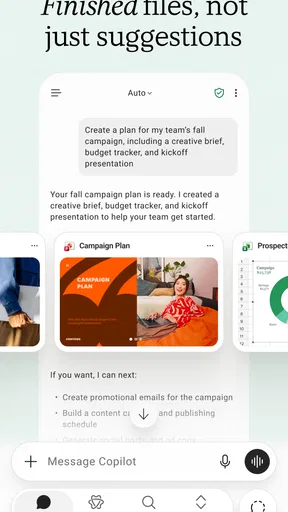
Another common snag is expecting every Microsoft 365 task to work in exactly the same way inside one mobile app. Copilot is a useful starting point for creating content, exploring ideas, and getting answers, but the best place to finish a task may still be the particular Microsoft app or service where that work belongs. I use it to get unstuck, then move into the appropriate tool when I need its specific controls.
Setup checks that save time
Before judging the experience, I make sure I am signed in with the account I actually intend to use. If I have a personal account and a work or school account, it is easy to assume one is active when the other is. Checking the account shown in the app is a simple first step when something looks different from what I expected.
I also check that the app is up to date through the relevant app store and that my connection is working. If a screen is slow to load or an answer does not appear, I first wait briefly and try again rather than repeatedly submitting the same request. Repeated prompts can leave me unsure which response is current, especially when I am switching between tasks.
Microsoft 365 Copilot is free to download, though in-app purchases are listed from $0.49 to $199.99 per item. I would check the purchase details shown in the app before committing to anything, and I would not assume that installing the app alone includes every paid option. The app is rated for teens, so I would also consider that age guidance when deciding whether it is suitable for a younger user.
Worth Reading Before You Choose

Flipboard Shows What News Apps Must Do Beyond the Feed

Switching to Android Auto Means Rethinking Your Driving Routine

Google Calendar Makes a Crowded Week Easier to Manage

Ludo King Makes the Most of the Minutes Between Plans

Baby Panda World Brings Quick Play to Modern Phones, but Its Game Library Feels Busy

ESPN’s Live Game View Makes Following Close Games Easier
Recovering a workflow when the answer misses
When a response is off target, I do not usually start over with the same vague prompt. I add the missing context, say what should change, and ask for a revised version. For example, if a draft is too formal, I can ask for a warmer tone and keep the essential facts intact. This makes the next attempt easier to assess and avoids treating a fluent answer as a correct one.
A useful phone workflow is to capture the task in small stages: first ask for an outline, then choose the parts worth keeping, and finally request a concise draft. I find this easier to review than a long answer, and it gives me more chances to catch a wrong assumption before it spreads into a message or document. For sensitive or important work, I would avoid entering details I do not need to share and would verify the final material in its intended destination.
If a conversation becomes tangled, I narrow the next request to one specific outcome instead of adding several unrelated instructions. That is a practical way to recover without assuming the assistant understands every earlier detail exactly as I do. It also helps separate brainstorming from fact-checking: I can use the app to explore possibilities, then confirm factual points through sources I trust.
When the app may not be the problem
Not every awkward result means the app itself is failing. A prompt can be underspecified, an account may not be the one I meant to use, or a task may be better handled in a dedicated Microsoft 365 tool. I first identify which of those is most likely before reinstalling anything or repeating the same request. That keeps troubleshooting proportionate and makes it easier to see whether the issue follows the task, the account, or the connection.
There is also a difference between an assistant producing a plausible answer and a specialist tool completing a structured job. If I need dependable calendar controls, detailed document formatting, or a carefully maintained task system, I prefer the relevant dedicated app. Copilot is more compelling when I need a starting point, a fresh explanation, or help shaping a piece of writing than when I need exact control over every step.
What’s the Deal with Microsoft 365 Copilot?
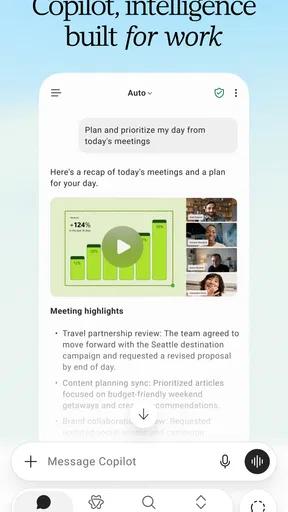
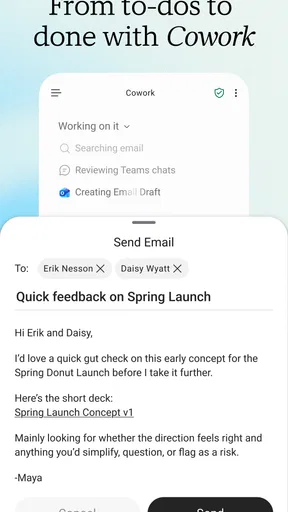
Alright, so what exactly is Microsoft 365 Copilot? In a nutshell, it’s an AI-powered tool that integrates seamlessly with the Microsoft 365 suite. Think of it as your trusty sidekick when you’re juggling a million tasks at once. Whether you’re drafting emails, scheduling meetings, or just trying to stay on top of your calendar, Copilot’s got your back.
Getting Started
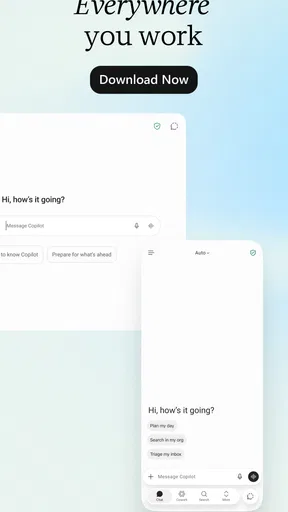
Setting up Copilot is a breeze. It’s all about syncing it with your existing Microsoft 365 account, and boom, you’re good to go. The interface is pretty intuitive, so even if you’re not exactly a tech whiz, you’ll find your way around without breaking a sweat. The app runs smoothly on both Android and iOS, so no worries there.
Features That Stand Out
The moment you start using Copilot, you’ll notice how it anticipates your needs. It learns from your habits and preferences, so the more you use it, the better it gets at assisting you. Here are some features that really caught my eye:
- Smart Suggestions: Copilot offers suggestions for tasks, emails, and even meeting times based on your previous activities. It’s like having someone read your mind!
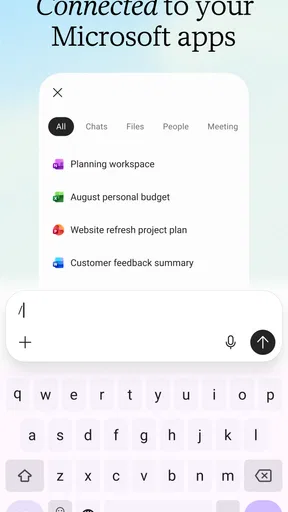
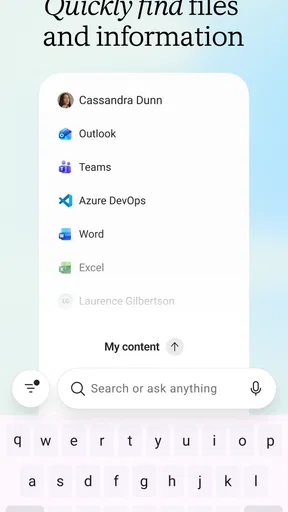
- Integration: It plays well with other apps in the Microsoft 365 ecosystem, keeping your workflow smooth and uninterrupted.
- Voice Commands: You can use voice commands for hands-free operation, which is super convenient when you’re on the go.
Everyday Use and Performance
In my day-to-day routine, Copilot has been a game-changer. From crafting quick replies to emails to managing my to-do lists, it keeps everything organized and efficient. The AI is surprisingly good at picking up on the context, which makes the suggestions feel spot on most of the time.
One thing I did notice, though, is that while it’s pretty accurate, there can be moments where the suggestions are a bit off. It’s not a dealbreaker, but something to be aware of as the AI continues to learn and adapt.
Making it useful in a real day
A realistic use for me is turning scattered thoughts into something I can act on. Imagine I have a few minutes before a meeting and need to send a clear follow-up: I can ask for a concise message based on the points I provide, read it carefully, and edit it before sending. The value is not that Copilot knows what happened in the meeting; it is that it can help me organize the information I choose to give it.
I also use this kind of assistant for early-stage work, when I have not yet decided how to approach a task. I might ask for several ways to structure a short presentation or for questions to consider before writing a proposal. I then select the useful suggestions rather than treating the generated list as a plan I must follow. This is a small but important distinction: the app can help widen my options, while the judgment about what fits remains mine.
For a busy day, I would keep requests narrow and finish one useful item at a time. For example, I could first ask for a brief outline for a message, then request a friendlier version, and finally check the final wording against the facts I supplied. Breaking the work into steps is more reliable than asking for a polished result that combines several tasks and assumptions.
How it compares with familiar alternatives
Compared with a conventional notes app or task manager, Copilot is less about maintaining a precise, manually organized record and more about helping me generate or reshape content. A notes app is usually the better home for information I need to find later in a predictable structure. A dedicated calendar is better when I need to inspect and control appointments directly. Copilot can complement those tools, but I would not choose it as their automatic substitute.
Compared with a general-purpose AI assistant, its Microsoft 365 identity is the main reason I would consider it. It makes the most sense for someone who already thinks of their work in Microsoft’s ecosystem and wants an assistant nearby for drafting and idea development. If my daily work happens mostly in other platforms, or I want a tool devoted to one narrow job, another option may involve less switching and less adjustment.
The app has an average rating of 4.5 from around nine million ratings and more than a billion installs, which shows that it has broad reach. I still would not use popularity as a substitute for testing whether it suits my own workflow. The right comparison is the time and effort it saves me on a task I actually do, balanced against the time needed to review its output.
Who will get the most from it
I would recommend trying it if you often need a first draft, a clearer explanation, or a few starting ideas while working from your phone. It is especially practical when you can supply enough context to guide the result and are comfortable checking what comes back. The strongest fit is not simply “anyone who wants to be productive”; it is someone who has recurring writing or thinking tasks and can use an assistant as a collaborator rather than an authority.
I would skip it, or keep it as an occasional tool, if I needed a strict task system, exact document controls, or answers that I could accept without review. It may also add little value if I rarely use Microsoft 365 and already have a workflow that handles drafting and planning well. A free download is easy to try, but the better question is whether it earns a regular place in your routine.
The app has been available since February 16, 2020, and the store short description identifies it as Microsoft 365. Its listed content rating is Teen. Those details help set expectations, but they do not remove the need to make sensible choices about the information I enter or to check important outputs before acting on them.
Wrapping Up
At the end of the day, Microsoft 365 Copilot is like having a smart assistant who’s always ready to help. It’s perfect for anyone looking to boost productivity without breaking a sweat. The app is still evolving, and I’m excited to see how it grows even more capable over time. If you’re already using Microsoft 365, this is a must-try addition to your digital toolkit. Give it a shot, and you might just wonder how you ever lived without it!
My practical verdict is more measured: I would keep it for moments when a blank page, a messy idea, or a rushed message slows me down, then verify and finish the work in the right place. Microsoft 365 Copilot is a useful companion, not a replacement for careful reading or a dedicated tool that gives me precise control. If that balance suits you, it is worth trying; if you expect every response to be ready to use without checking, you are likely to be disappointed.
Pros
- Integrates seamlessly with Microsoft 365 suite.
- Boosts productivity with AI-driven assistance.
- User-friendly interface with intuitive design.
- Supports collaboration across multiple platforms.
- Customizable to fit specific business needs.
Cons
- Requires a subscription to access full features.
- Limited offline functionality without internet.
- High learning curve for new users.
- Not all features available in mobile apps.
- Can be resource-intensive on older devices.
FAQs for Microsoft 365 Copilot
What is Microsoft 365 Copilot and how does it work?
Microsoft 365 Copilot is an AI-powered tool integrated into Microsoft 365 applications like Word, Excel, and Teams. It assists users by generating content, analyzing data, and offering insights to enhance productivity. By utilizing advanced AI models, it helps streamline tasks and improve efficiency across various platforms.
Is Microsoft 365 Copilot available on all devices?
Microsoft 365 Copilot is available on devices that support Microsoft 365 applications, including Windows, macOS, iOS, and Android. However, certain features may vary depending on the device's operating system and the version of the app installed. Always ensure your apps are up-to-date to access the latest features.
Does Microsoft 365 Copilot require an internet connection?
Yes, Microsoft 365 Copilot requires an internet connection to function effectively. It uses cloud-based AI processing to deliver accurate suggestions and insights. While some basic functionality might be available offline, the full experience relies on connectivity to Microsoft's cloud services.
How secure is my data when using Microsoft 365 Copilot?
Microsoft 365 Copilot is designed with security and privacy in mind. Microsoft implements robust security measures, including data encryption and compliance with industry standards, to protect user data. Users have control over their data, and Microsoft ensures that AI models are trained to respect privacy.
Do I need a Microsoft 365 subscription to use Copilot?
Yes, a Microsoft 365 subscription is required to access Copilot features. The subscription provides access to the latest updates and features across Microsoft 365 apps. Different subscription plans offer varying levels of access, so users should choose the plan that best suits their needs.


